
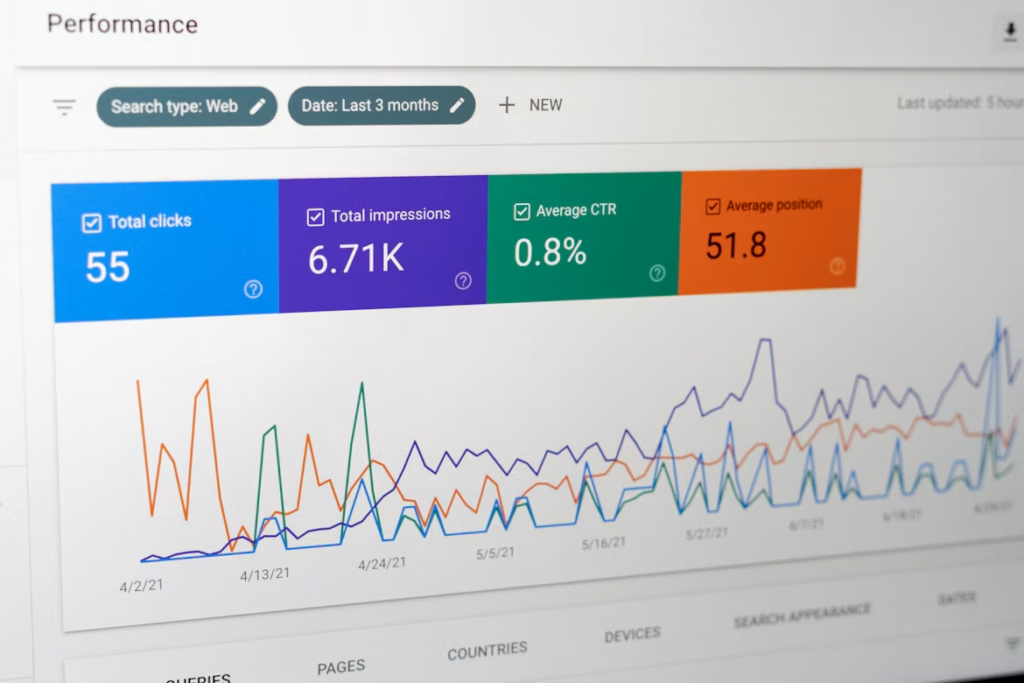
Checking backlinks in Google Search Console (GSC) is the most direct way to see which external websites Google has discovered pointing to your site. Unlike paid SEO tools that estimate link metrics, GSC shows data directly from Google’s own index—though it comes with important limits you need to understand before making SEO decisions.
In this guide, you will learn how to open the Links report, read all three external link tables, export your backlink data properly, spot risky or unusual links, and know when to pair Search Console with third-party tools.
Step 1: Open the Right Property and Go to Links
-
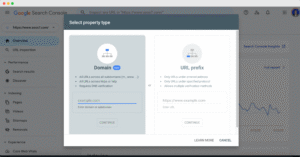
Sign in to Google Search Console and select your website property. If you have verified a Domain property in Google Search Console, select it rather than a single URL-prefix property so you capture
www, non-www, and subdomains in one unified view. -
In the left-hand sidebar, scroll down to the bottom and click Links.
-
Focus on the External links column on the left (the right side displays Internal links, which helps you audit and improve your internal links across your own pages).
Step 2: Understand the Three External Backlink Reports
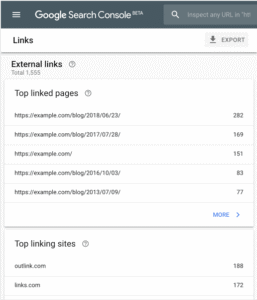
Google Search Console breaks your external backlink profile into three core reports:
-
Top linked pages: Shows which pages on your website receive the most external links. Click More and select any URL to see which domains link to that specific page. This helps you identify which blog posts, tools, or service pages naturally attract links.
-
Top linking sites: Lists the root domains that link to your site most often. Click any domain to see which of your pages it links to and how many times. If a single domain shows an unusually high link count, it is often a sitewide sidebar, widget, or footer link.
-
Top linking text: Displays the most common anchor text (clickable words) used in backlinks pointing to your site. Image links or links without anchor text appear as
(empty). Healthy link profiles usually lean toward brand names, raw URLs, and natural descriptive phrases rather than repetitive exact-match keywords.
Step 3: How to Export Backlinks in Google Search Console
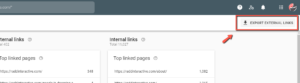
When you want to filter or audit your links in a spreadsheet, click Export external links in the top-right corner of the Links report. You will see export options such as:
-
Latest links: A quick snapshot of your most recent backlinks.
-
More sample links: A broader sample spread across your entire backlink profile.
-
Most recent links: Exports a large batch (up to 100,000 rows) showing the Target page, Linking page, and First detected date.
Important tip: The date shown in Google Search Console is when Google discovered the link during crawling and indexing—not necessarily the exact day the other website published it.
Step 4: What Google Search Console Does NOT Show (Key Limitations)
Many website owners get confused because they expect GSC to work like a full link-building database. Keep these core differences in mind:
| Feature / Metric | Google Search Console | Third-Party SEO Tools (Ahrefs, Semrush, Moz) |
|---|---|---|
| Cost | Free | Paid / limited freemium plans |
| Authority & Traffic Estimates | Not shown | Shown (e.g., DR, Authority Score, estimated traffic) |
| Dofollow vs. Nofollow Filter | Not explicitly labeled in report | Filterable directly |
| Competitor Backlinks | Only for properties you own/verify | Available for any competitor domain |
| Complete Link Index | Sampled / partial view for large sites | Broad independent web crawls |
Also keep two common surprises in mind:
-
New links take time: If a site linked to you yesterday, it can take several days or weeks to show up in GSC until Google crawls and processes the linking page.
-
Disavowed domains still appear: Even after you upload a disavow file, links from that domain remain visible in the Links report because disavowing tells Google to ignore those links during ranking calculations rather than deleting them from your dashboard.
Step 5: Practical Workflow — Turning Link Data Into Higher Rankings
Checking backlinks only drives traffic when you turn the data into clear SEO actions:
-
Double down on link magnets: Review Top linked pages regularly. When a guide or resource earns links naturally, expand its depth, keep statistics up to date, and add internal links from that page to high-priority pages you want to rank higher.
-
Spot unnatural link patterns: Check Top linking sites and Top linking text for suspicious foreign spam domains or sudden spikes in exact-match commercial anchor text. Only use Google’s Disavow Tool if you see clear signs of a manual action or severe spam attack—otherwise, Google’s algorithms ignore low-quality links automatically.
-
Combine GSC with outreach and link checkers: Use GSC as your ground-truth check for links Google has indexed on your domain. When you need competitor backlink data, dofollow/nofollow filtering, or outreach prospects, pair GSC with one of the best free backlink checker tools to build high-quality backlinks to your site.
Quick Troubleshooting: Why Are Backlinks Missing or Low?
-
Your property isn’t verified yet: Link data will not populate until your website is added and verified in Search Console.
-
You selected a narrow URL-prefix property: Links pointing to
http://,www, or a subdomain will not show up inside anhttps://non-wwwproperty. Switch to a Domain property to see everything together. -
Google hasn’t indexed the linking page: If the external page linking to you is not indexed by Google yet, Search Console will not report the backlink.
Frequently Asked Questions
How do I check backlinks in Google Search Console?
Open Google Search Console, select your website property, and click Links in the left-hand sidebar. Under the External links column, review Top linked pages to see which URLs receive links, Top linking sites to see referring domains, and Top linking text to inspect anchor text.
Is checking backlinks in Google Search Console free?
Yes, Google Search Console is completely free for verified website owners. It provides direct backlink data from Google’s index without paid subscriptions, though it only shows links for properties you own and verify.
How do I export backlinks from Google Search Console?
Go to Links in the left sidebar of Google Search Console and click Export external links in the top-right corner. Choose Latest links, More sample links, or Most recent links, then download the report as a Google Sheet, Excel file, or CSV.
Why are my new backlinks not showing in Google Search Console?
New backlinks appear only after Google crawls and indexes the external page linking to you, which can take anywhere from a few days to several weeks. You may also miss links if you are viewing a single URL-prefix property instead of a full Domain property.
Does Google Search Console show dofollow and nofollow links?
No, Google Search Console does not separate or label backlinks as dofollow or nofollow links in the Links report. To filter link attributes or check domain authority metrics, pair Search Console with a third-party SEO tool or inspect the linking page’s source code directly.
Can I check competitor backlinks in Google Search Console?
No, Google Search Console only displays backlink data for websites you own and have verified. To analyze competitor backlinks, you need a third-party backlink checker such as Ahrefs, Semrush, or Moz.
Start Auditing Your Backlink Profile Today
Google Search Console gives you direct visibility into how Google discovers and connects your site across the web—without spending a dollar on paid subscriptions. Open your Links report today, export your external links to spot your strongest pages, and use those insights to guide your next content updates and link-building outreach.