
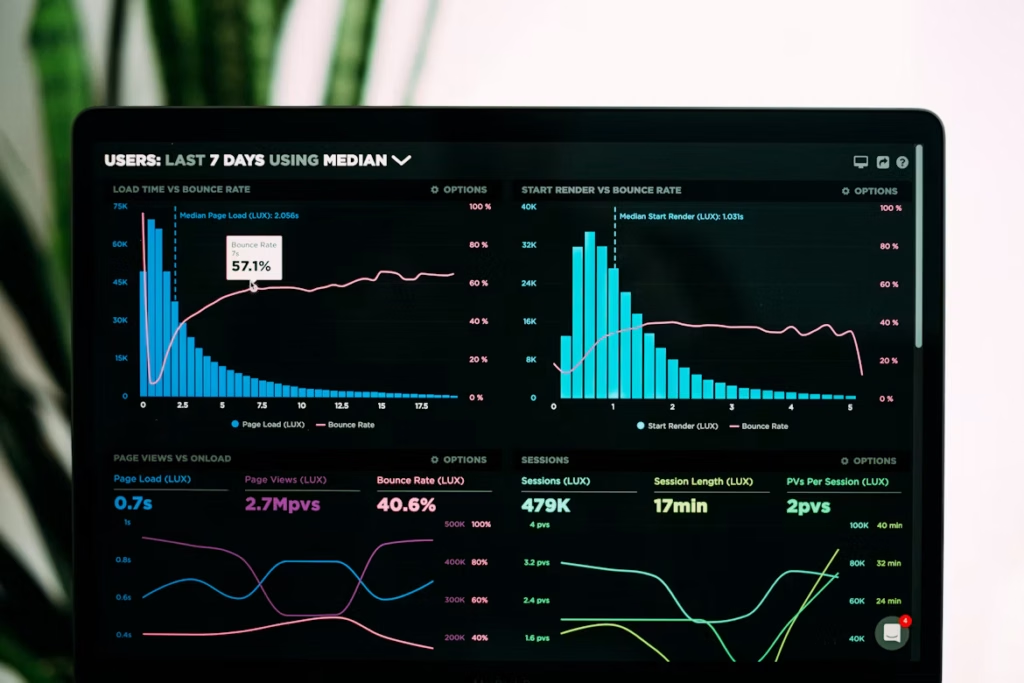
Automated SEO reports pull your search data into a dashboard and send it to your inbox on a schedule, so you stop copying numbers by hand. You can build a free one with Google Search Console and Looker Studio in about an hour.
This guide shows you which metrics to include, how to set the report up and how to keep it useful for clients or your own team.
What Should an Automated SEO Report Include?
A report nobody reads is wasted effort. Keep it short and focused on decisions. Good reports answer three questions: is traffic growing, which pages drive it, and what should we do next?
- Performance: clicks, impressions, click-through rate and average position.
- Top pages and queries: what earns visibility now.
- Indexing and technical health: indexed pages and any new errors.
- Links: new referring domains and lost links.
- Actions: two or three specific tasks for the next period.
How to Set Up an Automated SEO Report (Free)
1. Verify your site in Search Console
Add and verify your property in Google Search Console. Search Console keeps 16 months of performance data, so start the connection early to build history.
2. Create a Looker Studio report
Open Looker Studio, create a new report and choose the Search Console connector as your data source. Select your site and the URL impression table.
3. Add the key charts
Add a scorecard row for clicks, impressions, click-through rate and position, a time-series chart for trends, and tables for top pages and top queries. Add a date comparison so each report shows change against the previous period.
4. Schedule email delivery
Use the report’s share menu to schedule delivery by email, weekly or monthly, with a PDF attached. Send it to yourself first and check it reads clearly on a phone.
5. Add a short notes box
Automation covers the numbers, but you still need to interpret them. Add a text box with the main finding and next steps before sharing with a client or manager.
Free Tools vs Paid Platforms
| Option | Best for | Limits |
|---|---|---|
| Search Console plus Looker Studio | Free performance and indexing reports | No competitor data, setup takes some time |
| Paid SEO suites | Rank tracking, competitors, backlink data | Subscription cost, estimated metrics |
| Manual spreadsheet | One-off checks | Time-consuming and easy to get wrong |
If you need backlink data in the same report, read our guides on finding backlinks in Google Search Console and the best backlink checker tools in 2026. For more tool ideas, see SEO software and services.
Tips to Keep Reports Useful
- Report on trends over weeks and months, not single days.
- Highlight wins and problems, and skip metrics that never change a decision.
- Use the same layout every period so comparisons are easy.
- When traffic falls, follow Google’s guide on debugging drops in Search traffic before you react.
- Pair your report with a regular on page SEO check so the actions you list are specific.
Frequently Asked Questions (FAQ)
What are automated SEO reports?
They are dashboards or emails that update themselves from tools such as Google Search Console. They show clicks, impressions, rankings and technical health without manual copying.
Can I create automated SEO reports for free?
Yes. Connect Google Search Console to Looker Studio, build your charts and schedule an email delivery. Both tools are free to use.
How often should I send an SEO report?
Monthly works for most sites, with a quick weekly check if you publish often. SEO changes slowly, so longer trends matter more than daily swings.
What metrics matter most in an SEO report?
Clicks, impressions, click-through rate and average position, plus top pages, indexing status and new or lost links. Add short notes explaining what to do next.